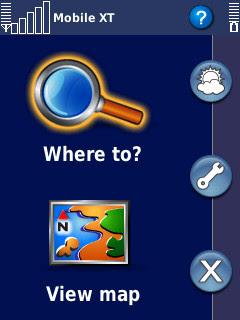
I bought my Nokia 5800 in Jan and ever since i was looking for a GPS Navigation. Finally i heard of Garmin Mobile XT Navigation version 5.00.40 for Symbian S60 v3, am using it on Nokia 5800 latest version 5.00.40, which is a standalone version with Touch UI. Download
here complete package for installation with base map. Todownload India Map click
here. Below is the installation procedure which i found on various blogs and orkut's Nokia 5800 community, but all of them didn't worked for me. so after spending lot of time online i am writing this post which is easy to understand and install.
If you already have Garmin Mobile XT Navigation version 5.00.30 and want to update it to version 5.00.40 then download it
here and install.
Changes made from version 5.00.30 to 5.00.40: It provide location format selection for coordinates and Correct picture viewer to show multiple photos in Travel Guide.
Installation Procedure1-Connect your mobile to pc in mass storage mode.
2-Copy folder name garmin, private, resource and sys from Garmin GPS folder downloaded, to your MMC root folder.
3-When asked for replace, replace everything, all your pre installed software will remain intact.
4-Install GarminMobileXT.sis file in MMC. DO NOT LAUNCH GARMIN APPLICATION.
Unlocking Garmin Mobile XT 5.00.40
1) Genrate your Unit id, using Unit id genrator provided by entering your IMEI.
2) Launch the garmin keygen , and type in your unit id in the bar.
3) Hit the first generate button to generate device unlock key.
4) Copy this code to a new.txt file. and save.
5) Rename the .txt file to sw.unl, make sure .txt file extensions is visible and changed to .unl
(know How to make file extensions visible in Windows? here, this is a stupid mistake most of us do.)
6) Do Not Close KeyGen.
Unlocking India Map ID- 1119
1)In the keygen, goto select map product and choose CUSTOM MAP at the bottom.
2)A window will pop up, so write 1119 (code for india maps) in the 1st area, leave the rest, press OK.
3)Generate map code by click second generate code next to exit in the keygen and paste it in the notepad.
4)Save the file with the name gmapsupp.unl (remember the extention should not
be .txt it should bt .unl)
5)Copy & Paste gmapsupp.img, gmapsupp.unl and sw.unl to GARMIN FOLDER in MMC.
6)Start application, GoTo Tools-->Settings-->System-->Remote GPS and select inbuilt GPS.
Thats it go out and you are ready to navigate.
IMPORTANT: Remember if you are using GPS for first time or you don't use it too frequently it might take 15-20 min. to get a fix be in open sky.
sponsored by AKM Jewels


